Use the Manual HSV Threshold dialog box to manually define the threshold values in a color image.
Setting threshold values is necessary to define objects in an image for an object analysis. Phases will be defined in the image by appropriate threshold values. You can find more information on threshold values and phases here.
Opening the dialog box
You open this dialog box, via the Count and Measure tool window. Load a color image. To do that, select the Manual HSV Threshold... entry, in the Threshold button's context menu. You open this menu by clicking the small arrow next to the button. If this entry is already selected, simply click the Manual HSV Threshold... button.
The dialog box's structure
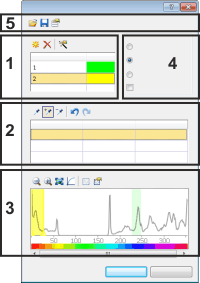
The dialog box is made up of several groups. Click on one of the areas in the dialog box shown above to jump to the corresponding help topic.
(1) Defining phases
(5) Loading, saving, and managing threshold values
See also
Carrying out an automatic image analysis
Tool Window - Count and Measure
(1) Defining phases
In true-color images, phases are image structures of the same color. Use the Phase group to define phases.
Adding phases
Click on the Add Phase  button to create a phase.
Double click the field in the Class Name column to enter a name for the corresponding phase.
Double click the field in the Color column to open the color palette and to select a color for the corresponding phase. The phase will be displayed in the color you have assigned it, in the image window and in the histogram.
Deleting phases
Click the Remove Phase  button to delete a phase. At least one phase will always be defined. It's only possible to remove a phase when two phases have been defined.
Calculating threshold values automatically
Click the Compute phase thresholds automatically  button to have the threshold values calculated automatically to begin with. You can then process them manually if required. The Automatic Threshold Computation dialog box opens. A description of this dialog box can be found here.
(2) Defining threshold values
The threshold value setting for phases in color images is more complex than it is in gray-value images. For true-color images you can define the threshold value setting either in the RGB space (Red/Green/Blue) or in the HSV space (Hue/Saturation/Intensity). When you use the Manual HSV Threshold... command, you automatically use the HSV space.
If, in the HSV space, you want to define image areas of the same color as a phase, please pay attention to the following:
The color value of a single pixel will be determined via the three parameters: hue, saturation and intensity. That means that when you select a single pixel, you will receive an individual value for each of these parameters. For the hue, values will be between 0 and 360. For the saturation and intensity, these values will, in each case, be between 0 and 256.
When you make a threshold value setting for a phase in a true-color image, you will always set the threshold value range for all three parameters simultaneously. As opposed to gray-value images, where for a phase only one higher and one lower threshold value is required, in this case, you require one higher and one lower threshold value for each of the parameters. That's to say, you require a total of 6 threshold values to define one phase.


 Defining threshold values
In the Phases group, select a phase for which you wish to set the threshold values. The currently selected phase will then be displayed in the color you have assigned it, in the image window and in the histogram. In the [ Min. field, the threshold value range's lower value will be specified for each of the parameters. In the Max. [ field, the higher value will be specified for each of the parameters. The higher value itself no longer belongs to the threshold value range. The values shown will be adopted from the last threshold value setting that was carried out.
Click the New Threshold button to set initial values for the threshold value ranges of all three parameters, for the phase. As soon as you move your mouse pointer onto the image it will change its shape to that of a pipette.
Click on one pixel or on an image area whose color value is to be utilized as the initial value. All of the pixels that have the same color value will be colorized in the image. The threshold value range for each parameter now contains initially only one value. As a rule, you will still need to expand this threshold value range. Once the initial values have been set, your mouse pointer will automatically change into a pipette with plus icon . Now, immediately click further pixels to add these to the threshold value range.
The boundary between different image structures can already be crossed with just one click, so that under certain circumstances, image structures will be counted as part of a phase to which they don't belong. In this case, click the Undo Pipet  button to undo the results of the last click.
To gain a better visual control during the threshold value setting, you can, as usual, use your software's zoom functions. Move your mouse pointer onto the appropriate position in the image, then use the mouse wheel to zoom into or out of the image.
Click the Shrink Threshold button to select pixels that aren't to belong to the phase. The threshold value ranges will be reduced to such an extent that they no longer contain the selected pixel's color value.
It is also possible to enter threshold values directly. To do this, click the Min. or Max. field, then enter the required value. Click the Undo Pipet button to undo the last selections step by step.
Click the Redo Pipet  button to restore the last selections that were undone, step by step.
(3) Histogram display
When you set the threshold values for phases in true-color images in the Manual HSV Threshold dialog box, one of the three parameters: hue, saturation or intensity, will in each case be displayed in the histogram. You can select the parameter that is to be displayed, in the Channel thresholds for phase'...' group. You can find more information on the histogram here.
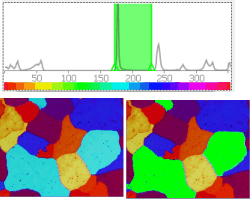
The histogram (top) shows the distribution of the color values in the image. One phase has been defined for blue.
The source image is shown at the bottom left. Next to it in the image on the right, the phase has been colored green.
(4) Setting preview options
Use the Preview of phases group to display the phases in color in the image when setting the thresholds. By using the Preview you will have a direct visual control over which image areas belong to a phase and which don't. The phases are only displayed in color as long as the dialog box for setting thresholds is open.
Select the None option to have the preview switched off. None of the phases that have been defined will be displayed in the image in color.
Select the Current option to have the currently selected phase shown in its assigned color, in the image. You select a phase, by clicking it in the Phase thresholds for channel '...' group.
Select the All option to have all of the defined phases shown in the image, in their assigned colors.
Select the Transparent option to make it possible to recognize the image structures despite the phases being displayed in color.
Even when the dialog box for setting threshold values is open, you can still use your software's zoom functions as usual. Move your mouse pointer onto the appropriate position in the image, then use the mouse wheel to zoom into or out of the image.
The default setting for the Preview of phases group, is the All option. Every time you reopen the dialog box, the All option will therefore be initially set.
(5) Loading, saving, and managing threshold values
Use these buttons to load, save or change the threshold value settings. You can save the following settings to a parameter set: The phase's name, the number of phases and the colors assigned to them.
When automatically setting threshold values, the intensity ranges belonging to the individual phases are recalculated for each image.
You will find more information on working with parameter sets here.
5615 24112014