What is a tool window?
Tool windows combine functions into groups. These may be very different functions. For example, in the Properties tool window, you will find all the information available on the active document.
In contrast to dialog boxes, tool windows keep visible on the user interface as long as they are switched on. That gives you access to the settings in the tool windows at any time.
Showing and hiding tool windows
Which tool windows are shown by default depends on the layout you have chosen. You can, at any time, make specific tool windows appear and disappear manually. To do so, use the View > Tool Windows command.
See also
Position of the tool windows
The user interface is to a large degree configurable. For this reason, tool windows can be docked, freely positioned, or integrated in document groups.
Docked tool windows
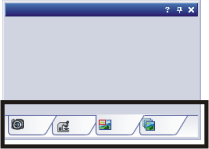
Tool windows can be docked to the left or right of the document window, or below it. To save space, several tool windows may lie on top of each other. They are then arranged as tabs. In this case, activate the required tool window by clicking the title of the corresponding tab below the window.
Freely positioned tool windows
Prerequisite: You can only position tool windows as you wish when you are in the expert mode.
You can at any time float a tool window. To release a tool window from its docked position, click on its header with your left mouse button. Then, while keeping the left mouse button depressed, drag the tool window to wherever you want it.
Saving the tool window's position
Tool windows and their positions are saved together with the layout and are available at the same position the next time you start your software. A return to the original layout using the View > Layout > Reset Current Layout command will have the result that only the tool windows that are defined by default for this layout will be displayed.
Buttons in the header
In the header of every tool window, you will find the three buttons Help, Auto Hide and Close.

Click the Help button to open the online help for the tool window.
Click the Auto Hide button to minimize the tool window.
Click the Close button to hide the tool window. You can make it reappear at any time, for example, with the View > Tool Windows command.
Context menu of the header
To open a context menu, rightclick a tool window's header. The context menu can contain the Auto Hide and Transparency commands.
Additionally, the context menu contains a list of all of the tool windows that are available. Every tool window is identified by its own icon. The icons of the currently displayed tool windows will appear clicked. You can recognize this status by the icon's background color.
Use this list to make tool windows appear.
00037 26092012