What is a layout?
Your software's user interface is to a great extent configurable, so that it can easily be adapted to meet the requirements of individual users or of different tasks. You can define a so-called layout that is suitable for the task on hand. A layout is an arrangement of the control elements on your monitor that is optimal for the task on hand. In any layout, only the software functions that are important in respect to this layout will be available.
Example: The Camera Control tool window is only of importance when you acquire images. When instead of that, you want to measure images, you don't need that tool window.
That's why the Acquisition layout contains the Camera Control tool window, whereas in the Processing layout it's hidden.
Which elements of the user interface belong to the layout?
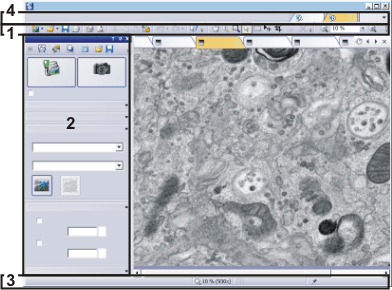
The illustration shows you the elements of the user interface that belong to the layout. The layout saves the element's size and position, regardless of whether they have been shown or hidden. When, for example, you have brought the Windows toolbar into a layout, it will only be available for this one layout.
Click on one of the areas in the user interface shown schematically above, to jump to the corresponding help topic.
(1) Toolbars
(2) Tool windows
(3) Status bar
(4) Menu bar
Switching to a layout
To switch backwards and forwards between different layouts, click on the right-hand side in the menu bar on the name of the layout you want, or use the View > Layout command.
Which predefined layouts are there?
For important tasks several layouts have already been defined. The following layouts are available:
Acquiring images ("Acquisition" layout)
Acquiring images ("Fullscreen" layout)
Editing and measuring images ("Processing" layout)
Restoring layouts
In contrast to your own layouts, predefined layouts can't be deleted. Therefore, you can always restore a predefined layout back to its originally defined form. To do this, select the predefined layout, and use the View > Layout > Reset Current Layout command.
See also
00013 10042013