The document group contains all loaded documents. As a rule, images will be loaded. You can also find other types of documents in the document group, charts for example.
Appearance of the document group
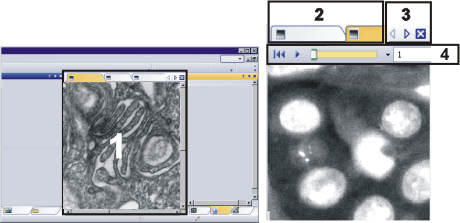
The illustration shows left, a schematic representation of a user interface. On the right, the document group is shown enlarged.
Click on one of the areas in the user interface shown above to jump to the corresponding help topic.
(1) Document group in the user interface
(2) Document bar in the document group
(3) Buttons in the document bar
(4) Navigation bar in the image window
See also
(1) Document group in the user interface
You will find the document group in the middle of the user interface. In it you will find all of the documents that have been loaded, and of course also all of the images that have been acquired. Also the live-image and the images resulting from, e.g., any image processing function, will be displayed there.
(2) Document bar in the document group
The document bar is the document group's header.

For every loaded document, an individual tab showing the document name will be set up in the document group. Click the name of a document in the document bar to have this document displayed in the document group. The name of the active document will be shown in color. Each type of document is identified by its own icon.
At the top right of each tab, a small [ x ] button is located. Click the button with the cross to close the document. If it has not yet been saved, the Unsaved Documents dialog box will open. You can then decide whether or not you still need the data.
(3) Buttons in the document bar
At the top right of the document bar you will see several buttons.


Button with a hand
Click the button with a hand on it to extract the document group from the user interface. In this way you will create a document window that you can freely position or change in size.
If you would like to merge two document groups, click the button with the hand in one of the two document groups. With the left mouse button depressed, drag the document group with all the files loaded in it, onto an existing one.
Prerequisite: You can only position document groups as you wish when you are in the expert mode. In standard mode the button with the hand is not available.
Arrow buttons
The arrow buttons located at the top right of the document group are, to begin with, inactive when you start your software. The arrow buttons will only become active when you have loaded so many documents that all of their names can no longer be displayed in the document group. Then you can click one of the two arrows to make the fields with the document names scroll to the left or the right. That will enable you to see the documents that were previously not shown.
(4) Navigation bar in the image window
Multi-dimensional images, time stacks for example, have their own navigation bar directly in the image window. Use this navigation bar to set or to change how a multi-dimensional image is to be displayed on your monitor.
Navigation bar for image series (time stack)
00139 13032014