Making a tool window appear/disappear
See also
Positioning tool windows
Prerequisite: You can only position tool windows as you wish when you are in the expert mode.
For example: You would like to drag the yellow tool window from its docked position, and instead dock it to the right of the user interface, where the yellow spot is.
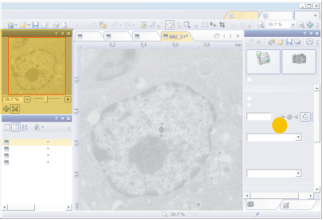
Floating a tool window
1.The yellow tool window is docked on the left-hand side of the user interface. Click the header of the tool window you wish to move.
2.While keeping your left mouse button depressed, drag the tool window away from the left-hand side of the user interface.
3.Move the tool window across the user interface. Your software will show you all of the places on the user interface where you can now dock the tool window. Pay attention to the arrows.
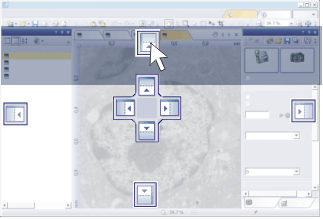
Docking a tool window
4.Move the floated tool window onto one of the blue arrows. Keep the left mouse button pressed.
•Your software will then show the tool window's position.
5.Release the mouse button, to have the tool window docked at this position.
Hiding the docking aid
6.Float the tool window from its docked position once more, and press the [Ctrl] key, while you move the tool window.
•The docking aid will then disappear. You can then move the tool window, as a freely movable window, into any position you wish.
Superimposing several tool windows
7.Float a tool window from its docked position and drag it onto another tool window e.g., on the right edge of the user interface.
•The docking aid over the tool window will now look like this:

8.Move the mouse pointer to the center of the docking aid then release the mouse button to have the tool window docked as a tab over the tool window you have already docked there.
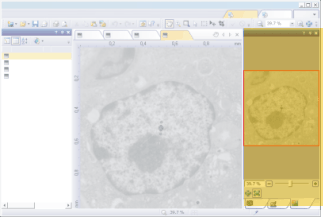
The user interface looks like this after the tool window has been moved.
Floating a tool window out of a combined window
You can at any time float a tool window that has been combined as a tab with another tool window, out of this combined window.
1.Click the tab's name and drag the tool window with the left mouse button depressed, out of the combined window.
•You find the tab's name below in a tool window in which several tool windows have been combined.
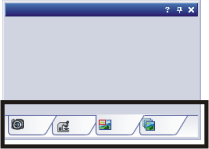
•When you float a window that contains several tool windows, by its header, out of its docked position, you will move all of the tool windows together.
Making a tool window appear/disappear
Making tool windows appear
Every tool window is identified by its own icon. The icons of the currently displayed tool windows will appear clicked. You can recognize this status by the icon's background color.
To make a tool window appear, open the list of all of the tool windows, and select one of the tool windows in it whose icon does not appear clicked.
Opening a list of all of the tool windows
There are several ways in which you can open a list of all existing tool windows.
1.Use the commands of the View > Tool windows menu.
2.Use the Tool Window  button that you will find either on the View toolbar, or on the Modify Layout toolbar.
3.To open a context menu, rightclick the header of any tool window. The context menu contains a list of all of the tool windows that are available.
Hiding a tool window
You can close a tool window by clicking the button with the cross  . You can find this button in the tool window's header.
00038 26092012