|
|
How do I recognize a time stack? What is a time stack?
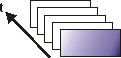
You can combine a series of individual images into one image. In a time stack all frames have been acquired at different points of time. A time stack shows you how an area of a sample changes with time. You can play back a time stack just as you do a movie. A standard image is two dimensional. The position of every pixel will be determined by its X- and Y-values. With a time stack, the time when the image was acquired is an additional dimension for each frame. The frames making up a time stack can be 8-bit gray-value images, 16-bit gray-value images or 24-bit true-color images. Note: A time stack can also be an AVI video. You can load and play back the AVI file format with your software. How do I recognize a time stack?You can immediately recognize the different image types by the icon which appears in front of the image name in the document group, or in the Documents tool window. When it is a time stack, this icon will be supplemented by a small clock. A time stack that is made up of gray-value images has, e.g., this icon In the Properties tool window, you can use the Image > Frame Count entry to find out how many individual images are contained in any given image. A time stack will automatically have its own navigation bar directly in the image window. Use this navigation bar to browse through the frames making up a time stack, or to play back the time stack like a movie. Creating time stacksTo acquire a time stack, use the Movie acquisition process. You can find more information on this topic here: Tool Window "Camera Control" - Movie recording Displaying time stacksA time stack contains much more data than can be displayed on your monitor. A time stack will automatically have its own navigation bar directly in the image window. Use this navigation bar to determine which of the frames from a time stack is to be displayed on your monitor. You can also play back a time stack just as you would a movie. Hiding the navigation barYou can also hide the navigation bar. To do this, use the Tools > Options... command. Select the Images > General entry in the tree view. Clear the Show image navigation toolbar check box. Saving time stacksNote: When you save time stacks, you will, as a rule, use the VSI file format. Only when you use this file format is there no limit to the size a time stack can be. When you save smaller time stacks, you can also use the TIF or the AVI file format. With any other file format you will lose most of the image information during saving. Use the File > Save As... command. Processing time stacksImage processing operations, e.g., a sharpen filter, affect either the whole image or only a selection of individual images. You will find most of the image processing operations in the Process menu. You can find more information on image processing functions here. The dialog box that is opened when you use an image processing operation is made up in the same way for every operation. In this dialog box, select the Apply on > Selected frames and channels option to ensure that the function only affects the selected frames. Select the Apply on > All frames and channels option, to process all of the individual images. An image processing operation does not change the source image's dimensions. The resulting image is, therefore, comprised of the same number of separate images as the source image. 00011 19092012 |

 .
.