The graphical user interface determines your software's appearance. It specifies which menus there are, how the individual functions can be called up, how and where data, e.g. images, is displayed, and much more. In the following, the basic elements of the user interface are described.
Note: Your software's user interface can be adapted to suit the requirements of individual users and tasks. You can, e.g., configure the toolbars, create new layouts, or modify the document group in such a way that several images can be displayed at the same time.
Appearance of the user interface
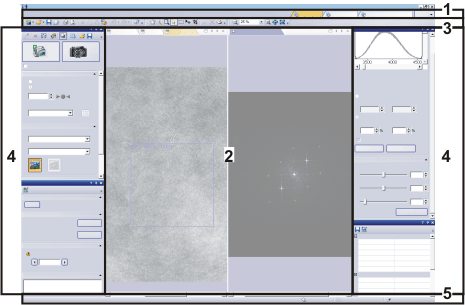
The illustration shows the schematic user interface with its basic elements.
Click on one of the areas in the user interface shown above to jump to the corresponding help topic.
(1) Menu bar
(2) Document group
(3) Toolbars
(4) Tool windows
(5) Status bar
(1) Menu bar
You can call up many commands by using the corresponding menu. Your software's menu bar can be configured to suit your requirements. Use the Tools > Customization > Start Customize Mode... command to add menus, modify, or delete them.
You can find more information on this topic here.
(2) Document group
The document group contains all loaded documents. These can be of all supported document types.
When you start your software, the document group is empty. While you use your software it gets filled - e.g., when you load or acquire images, or perform various image processing operations to change the source image and create a new one.
You can find more information on this topic here.
(3) Toolbars
Commands you use frequently are linked to a button providing you with quick and easy access to these functions. Please note, that there are many functions which are only accessible via a toolbar, e.g., the drawing functions required for annotating an image. Use the Tools > Customization > Start Customize Mode... command to modify a toolbar's appearance to suit your requirements.
You can find more information on this topic here.
(4) Tool windows
Tool windows combine functions into groups. These may be very different functions. For example, in the Properties tool window, you can find all the information available on the active document.
In contrast to dialog boxes, tool windows remain visible on the user interface as long as they are switched on. That gives you access to the settings in the tool windows at any time.
You can find more information on this topic here.
(5) Status bar
The status bar contains a large amount of information, e.g., a brief description of each function. Simply move the mouse pointer over the command or button for this information.
You can find more information on this topic here.
00108 25072012