You can find the Display Enhancement group in the Adjust Display tool window. If the group's functionality is hidden, click once on the small arrow button next to the Display Enhancement field.
Use this command to adjust the brightness, contrast and Gamma values for the image currently displayed on your monitor. You will see all changes immediately on the whole image. If you are in live mode and are acquiring a snap, the changes are applied to the image.
Note: You do not change the image data when you use these functions. The image will only be displayed differently on your monitor. The contrast settings will be saved along with the image, if you save the image in the TIF or VSI format.
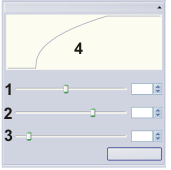
Click on one of the areas in the tool window shown above to jump to the corresponding help topic.
(4) Diagram with mapping function
Contrast settings and image types
 With a time stack you change the contrast settings for every frame simultaneously.
(1) Adjusting brightness
Move the Brightness slide control to the right, to make the image brighter.
Move the Brightness slide control to the left, to make the image darker.
Click the Default button to restore the default settings. You can change the default settings in the program options. To do this, use the Tools > Options > Images > Default Display Settings command.
(2) Adjusting contrast
Move the Contrast slide control to change the contrast values of the image.
Values between 50 and 100 increase the image contrast. Values between 0 and 50 decrease the image contrast. At a setting of 50 the image contrast remains unchanged.
Exactly what happens?
The contrast changes the intensity histogram. The intensity values are multiplied by a constant factor and are in this way spread or compressed.
Click the Default button to restore the default settings. You can change the default settings in the program options. To do this, use the Tools > Options > Images > Default Display Settings command.
(3) Adjusting Gamma value
Move the Gamma slide control to increase the image contrast either in bright image areas or only in dark image areas.
You can find more information on the Gamma correction here.
Click the Default button to restore the default settings. You can change the default settings in the program options. To do this, use the Tools > Options > Images > Default Display Settings command.
(4) Diagram with mapping function
In the tool window, you can bring up a diagram with the current mapping function. In this diagram, you can immediately see if and how the contrast settings have been changed.
If the image contrast has not been changed, the mapping function will be a line that runs diagonally from bottom left to top right. If, for example, you increase the contrast value, the line will become steeper.
Showing diagram with mapping function
This diagram is hidden by default. To have it displayed, use the Tools > Options command. Select the Images > Tool Windows entry in the tree view. Select the Adjust display > Display enhancement curve > Show separately option.
See also
00045 17032014