|
|
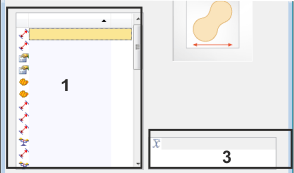
The Select ROI Measurements offers numerous measurement parameters for ROIs, that's to say, for specific image segments. In it, you specify which measurement parameters for defined ROIs are to be output in the Count and Measure Results tool window. You can hide measurement parameters that don't interest you, or make additional parameters appear. You can also change the order of the measurement parameters in the Count and Measure Results tool window, here. Opening the dialog boxYou can open this dialog box from both the ROI Measurements, and ROI Histogram, results views, by clicking the Select ROI Measurements button there. Alternatively, you can also open the dialog box by clicking the Count and Measure Options Description of dialog boxThe dialog box is divided into different areas. Click on one of the areas in the dialog box shown schematically above to jump to the corresponding help topic. (1) List of the measurement parameters (2) Description of measurement parameters (3) Statistically evaluating measurement parameters (4) List of the selected measurement parameters (5) Making ROI measurements available (6) Administration of parameter sets See also Overview - Automatic image analysis Results view - ROI Measurements (1) List of the measurement parametersThe Definition of ROI Measurement group displays a list of all of the available measurement parameters. Click a measurement parameter to obtain an image and a brief description in the right-hand part of the dialog box. Derived measurement parametersNumerous measurement parameters for ROIs are derived from measurement parameters for objects. For example, the mean area of all objects within a ROI is based on the Area measurement parameter for objects. A measurement parameter of this type will only be available in the Select ROI Measurements dialog box, if it has previously been selected in the Select Object Measurements dialog box. When you delete a measurement parameter in the Select Object Measurements dialog box that is used by a class parameter, you receive a message saying that it will also be deleted in the Select ROI Measurements dialog box. You can define some measurement parameters, Mean (Area) for example, for both class and ROI measurements. It means different things, though: In a class measurement, the parameter determines the mean area of all objects in a class for all ROIs. In a ROI measurement, the parameter determines the mean area of all objects in a ROI for all classes. (2) Description of measurement parametersMost of the measurement parameters are described by a drawing and a text in the dialog box. In the list of all the measurement parameters, click on the name of the parameter to display the description. (3) Statistically evaluating measurement parametersAll of the measurement parameters for object measurements can also be used for ROI measurements. As ROI measurements they are statistically evaluated. In the list of the measurement parameters, (1) you will find the measurement parameters for the object measurement, for example, the area. On the right-hand side (3) you can choose whether, for the ROI measurement, the mean value, or the sum of the areas, is to be output.
Example: As object measurement, the Perimeter measurement parameter is output for every single object. When the Perimeter measurement parameter is selected as ROI measurement, the mean value will be output, that's to say, the mean perimeter of all of the objects within a ROI. (4) List of the selected measurement parametersThe Measurements computed for all ROIs list shows the selected measurement parameters. Only these measurement parameters appear in the measurement display and will be adopted in the results sheet.
1.To do this, select the required measurement parameter in the list of measurement parameters. 2.Then click the Add <Measurement Parameter> button. Should the measurement parameter you've selected already be in the list of selected measurement parameters, this button will be gray and is not available.
1.To do so, select the measurement parameter you wish to delete in the Measurements computed for all ROIs list. 2.Click the button with the red cross. 3.The deleted measurement parameter will, from that moment on, be deactivated for all measurements of this type. It, however, can be reactivated any time.
1.Select the measurement parameter you wish to move in the Measurements computed for all ROIs list. 2.Click the arrow buttons to move the measurement parameter in the corresponding direction. •The first measurement parameter that is shown in the list, is then the first in the results sheet and so on. (5) Making ROI measurements availableTo make a measurement parameter available for a ROI measurement, it must first stand in the list of the selected measurement parameters, in the Select Object Measurements dialog box. Should a measurement parameter not be available in the list of the ROI measurements, you can add it by doing this: 1.Click the Select Object Measurements button to switch to the Select Object Measurements dialog box. •You can find more information on this dialog box here. 2.In it, add the required measurement parameter to the Measurements computed for all objects list. 3.The measurement parameter will then subsequently be available in the Select ROI Measurements dialog box, as an ROI measurement. (6) Administration of parameter sets
In this way you can determine the appearance of various measurement sheets.
See also 5531 28112014 |

 button, located in the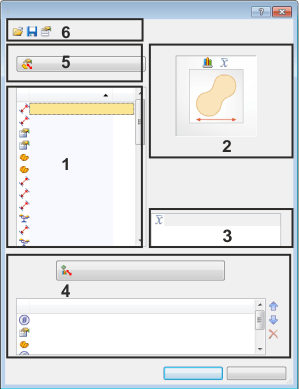
 You can show measurement parameters that are not available at present.
 If you're not interested in one of the measurement parameters, hide it in the results display.
 You can specify the order of the measurement parameters in the measurement display and in the results sheet.
 Click the
  Click the
  Click the