Use the Options > Count and Measure > Segmentation dialog box to make settings for the segmentation. You can find an overview of the Options > Count and Measure dialog box here.
Description of the function groups
See also
Overview - Automatic image analysis
Current segmentation method
What is a segmentation?
A prerequisite for an object analysis on an image is that it is meaningfully divided into regions according to content. This procedure is known as segmentation. As segmentation method, the setting of threshold values is used. You can choose between several different methods of setting threshold values.
An example for a threshold value setting
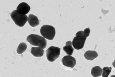
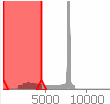
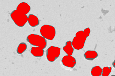
Image 1: You can see dark objects in the original image. When a threshold value setting is made, the objects are sorted into phases.
Image 2: The illustration show the image's histogram and the phases that have been defined. The histogram is displayed in the dialog box for setting threshold values.
Image 3: The thresholds have been set to include the objects within the same range. The phase is shown in red in the image.
In the Current segmentation method group, the current threshold value method will be shown.
Click the Define Current Segmentation Method  button to open the dialog box for setting threshold values.
You can change the current threshold value method in this dialog box. Select the threshold value method you want from the list. You can find an overview of the different threshold value methods here.
You can also recognize which of the threshold value methods is currently active by looking at the Threshold button in the Count and Measure tool window. The Threshold button will always be changed to show the current selection.
Normally, you change the threshold value method directly by using this button in the Count and Measure tool window. To do this, click the small arrow next to the Threshold button, then select the desired method.
Getting threshold values from the active image
Click the Get from Active Image button to have all of the settings of the Options > Count and Measure > Segmentation dialog box that were used for the analysis of the active image, restored. This button will only be active, when currently an image, on which an object analysis has already been performed, is active in the document group.
Use this button when you want to analyze another image with the same settings that you have already once defined for the active image.
Options
Showing the 'Segment' button
Select the Show 'Segment' button check box, if you want to make the Segment button appear in the Count and Measure tool window. It is, by default, hidden. When you click this button, the segmentation will be carried out. While this is being done, the segmentation image in which the threshold value setting is shown, will be displayed. When the button is hidden, the segmentation is automatically carried out when you click the Count and Measure button.
When does it make sense to have the segmentation image displayed?
It can make sense to put the segmentation image on display and to check whether, after the segmentation has been performed, all of the objects have been correctly separated. This will offer you the possibility of improving on the segmentation, by, for example, using a morphological filter. Click here to learn more.
Deleting the segmentation after detection
Select the Delete segmentation after detection check box to have the segmentation image deleted when the detection has taken place. This check box is selected by default. If this check box hasn't been selected, the segmentation image will be retained even after the detection has been performed.
Note: The Delete segmentation after detection check box can only be selected when the 'Show 'Segment' button has already been selected.
Executing the segmentation after setting the parameters
Select the Execute the segmentation after setting parameters check box to shorten the processing sequence in the Count and Measure tool window. The next analysis step will now be started immediately after the threshold value setting has been carried out. Which analysis step is the next one, depends on the status of the Show 'Segment' button check box.
When the Show 'Segment' button check box has been selected, the segmentation will be carried out immediately after the threshold value setting has been performed.
When the Show 'Segment button' check box hasn't been selected, immediately after the threshold value setting has been performed, the results of the object analysis will be shown in the Count and Measure Results tool window. In this way you receive your results directly without any steps between.
Clear the Execute the segmentation after setting parameters check box to finalize the threshold value setting in the Threshold dialog box initially with a click on the OK button. To have the results issued, you will have to subsequently click the Count and Measure button, located in the Count and Measure tool window.
5810 27112014