Your software offers you the possibility to automate work procedures that you use repeatedly.
To record, edit, manage, and run macros, use the Macro Manager tool window. Should this tool window not be on display, use the View > Tool Windows > Macro Manager command to display it.
Structure of the tool window
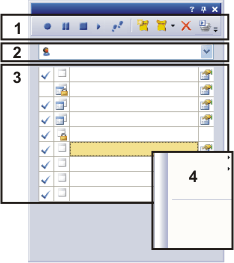
The tool window is made up of several groups. Click on one of the areas in the tool window shown above to jump to the corresponding help topic.
(2) Selection and display of the active macro
(3) The active macro's list of functions
(4) The tool window's context menu
See also
(1) The tool window's toolbar
In the Macro Manager tool window, a number of buttons are at your disposal in the toolbar.
Starting and finishing a macro recording
Use these buttons to start the recording of a macro and to finish the macro recording.


|
Click this button to continue with the macro recording. |
|
|
Interrupt Macro Recording |
Click this button to interrupt the macro recording. To continue with the macro recording, click the Record Macro button. |
|
Stop Macro Running / Recording |
Click this button to finish the macro recording or to cancel the running of a macro. A macro will be automatically saved as soon as the recording of the macro has been completed. You don't need to explicitly save the macro file. |
Run Macro
Use these buttons to run the active macro. You can either have all of the macro's functions carried out one after the other, without any interruptions, or you can run the macro step by step.


|
Click this button to run the macro that is currently active in the Macro Manager tool window. |
|
|
Click this button to run a macro step by step. |
Managing macros
Use these buttons to set up a new macro, to manage existing macros, or to delete them.


|
Click this button to create a new macro. |
|
|
Click this button to open a menu with numerous commands for the administration of macros. |
|
|
Click this button to delete the active macro. |
Activating the batch mode for macros
|
Click this button to start the active macro in a batch mode. In the batch mode, you can apply a macro to several images one after the other. |

You can find additional information on the batch process for macros here.
(2) Selection and display of the active macro
In the Macro Manager tool window, there is always only one single macro active. The macro that is active will be shown in the macro list, located immediately beneath the tool window's toolbar.
Most of the commands within the tool window apply to the active macro. You can only edit the active macro, deleting or adding functions for example.
Display of the active macro
While you record a macro, or let a macro run in the batch mode, you can't activate any other macro. That's why, in this case, the name of the active macro will be shown in gray.
Selecting a macro
If you want to edit an existing macro, select the one you require from the list. By doing this, you will load all of the functions belonging to this macro into the list of functions. Now, you can delete or add functions.
Which macros will you find in the list?
In the Macro Manager tool window you will be offered all of the macros you have yourself defined. Additionally, the macro list contains all of the macros that have been published.
Note: Macros will be user dependent saved. Macros that you have recorded and not published, will, as a rule, not be visible to other users of the software.
All of the macros that you've defined yourself and have not later on published, will be indicated by this icon  . These macros are only available to you. When another user logs on to your PC and starts your software, he won't be able to use these macros.
Should you wish to make a macro available to all of the software's users, you can publish that macro. All macros that have been published can be recognized by this icon  . To do this, use the Publish Macros... command.
(3) The active macro's list of functions
The Macro Manager tool window's list of functions shows all of the active macro's functions. Each of the functions will be shown in its own row. The central field (1) contains the function's name. Within the row you will find a number of icons that supply information on the corresponding function (2-3).
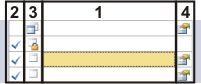
(2) Function status
(3) Execution mode
(3.1) List of functions
The order of the functions in the tool window corresponds exactly to the order in which you used the commands, or carried out the actions, in your software while the macro was being recorded. When you run the macro, the functions will be automatically carried out from the top to the bottom of the list.
You can change the order of the functions after the recording has been made, by using the commands Move step up, Move step down, Move step to top and Move step to bottom. You can find these commands in the Macro Manager tool window's context menu. To open the context menu, move your mouse pointer onto the list of functions and click the right mouse button.
The name of a function is set by your software. As a rule, it corresponds to the name of the command.
The commands in the tool window's context menu, Delete step for example, relate to the functions that have been selected in the tool window's list of functions. The functions you have selected will be highlighted in color in the tool window. If you want to select several functions, use the standard MS-Windows conventions for the multiple selection.
back to "The active macro's list of functions"
(3.2) Function status
The icons in the first row contain information on the function's status. The following icons will be used to identify the function's status:
|
The function is active It will be taken into account when the macro is run. |
|
When the function is inactive, the field will remain empty. An inactive function will be skipped when the macro is run. To deactivate or to reactivate a function, left click once in the field for the function status. For example: It can make sense to deactivate functions within a macro when you are testing a macro. When you deactivate some of the functions, you can concentrate on the functions that are not yet producing the results you want. |
|
This function's version number is too old, and for this reason the function can't be carried out. You will most likely receive this error message when you have imported macros from your software that were recorded with an older software version. You can update such functions. Select this function, then use the Update step command from the tool window's context menu. |
|
Your software doesn't know this function, and therefore it can't be carried out. You will most likely receive this error message when you have imported macros from your software that were recorded with another software version that contains more, or different, functions. A macro that contains an unknown function can't be run with your software. |


back to "The active macro's list of functions"
(3.3) Execution mode
The icons in the second row contain information on the execution mode in which the function is to be used within the macro. The following icons will be used to identify the execution mode's status:
|
|
Numerous functions use function parameters. That is always the case, for example, when you need to open a dialog box to record a function. A function with function parameters has either the execution mode (silent) |
|
Execution mode (silent) |
A function in the (silent) execution mode uses fixed parameters within a macro. These parameters will be automatically used when the macro is run, and can no longer be changed during the execution. For example: Use the Process > Sharpen Filters > Sharpen... command to record the function [Sharpen]. All of the settings in the Filter - Sharpen dialog box will likewise be recorded. When the macro is run, exactly these settings will be used. |
|
Execution mode (interactive) |
A function in the (interactive) execution mode opens a dialog box within a macro. This makes it possible for the user to change the settings used by the function while the macro is being run. |
|
Execution mode (forced silently) |
A function in the (forced silently) execution mode needs no parameters. When you record such a function, this execution mode will be automatically predetermined by your software. You can't change it. For example: Use the Image > Mode > Grayscale... command to record the function [Grayscale]. This function converts the active image directly into a gray-value image, without your having to select any settings. This function, within a macro, always has the (forced silently) execution mode. |


back to "The active macro's list of functions"
(3.4) Functions parameters
Numerous functions use function parameters. That is always the case, for example, when you need to open a dialog box to record a function.
|
This symbol, to the right of the function name, shows you all of the functions with which function parameters are linked. Double click this icon to open a dialog box. In it, you can view the settings for this function and also change them. |
|
A function in the (silent) When you edit a macro you can, at any time, change the settings that are to be used when the macro is run. To do so, double click the |
|
A function in the (interactive) You can, at any time, change the default settings that are to be used in the dialog box when the macro is run. To do this, double click on the |
|
If you can't set a parameter for a function, the field will remain empty. |

back to "The active macro's list of functions"
(4) The tool window's context menu
Move your mouse pointer onto the Macro Manager tool window's list of functions. Click the right mouse button to open a context menu.
Before you use commands from the context menu
Select one or more functions in the list of functions. The commands in the tool window's context menu, Delete step for example, relate to the selected functions. The functions you have selected will be highlighted in color in the tool window. If you want to select several functions, use the standard MS-Windows conventions for the multiple selection.
The following commands and menus are available in the context menu:
Recording > Insert after
Use this command to add functions to an existing macro. The Macro Manager tool window will switch to the recording mode. Now carry out the actions and use the commands in your software, that you want to add to the macro. All of the recorded functions will be inserted after the selected function.
Recording > Append
Use this command to add functions to an existing macro. The Macro Manager tool window will switch to the recording mode. Now carry out the actions and use the commands in your software, that you want to add to the macro. All of the recorded functions will be inserted at the end of the macro.
Alternatively, click the Record Macro button in the tool window's toolbar.
back to "The tool window's context menu"
Insert special command
Certain functions can only be used within a macro. Possible special functions are:
back to "The tool window's context menu"
Delete step
Use this command to delete all of the selected functions from the macro. To delete the complete macro, click the Delete Macro button in the tool window's toolbar.
back to "The tool window's context menu"
Update step
When you import macros that have been recorded with an older software version into your software, it will very likely result in an error message appearing in the first row of the list of functions. Your software then doesn't know this macro function, and therefore it can't be carried out.
You can update such a macro function. Select this macro function, then use the Update step command from the tool window's context menu.
back to "The tool window's context menu"
Move step
The context menu contains the Move step up, Move step down, Move step to top and Move step to bottom commands. Use one of these commands to change the order of the functions in the macro. When you run the macro, the functions will be automatically carried out from the top to the bottom of the list.
back to "The tool window's context menu"
Activation > Activate All / Activate Selected
When the macro is run, only the functions that are active will be carried out. Use this command to activate all of the functions, or only the functions that have been selected, in a macro.
Activation > Deactivate All / Deactivate Selected
When the macro is run, only the functions that are active will be carried out. The deactivated functions will be skipped. Use this command to deactivate all of the functions, or only the functions that have been selected, in a macro.
For example: It can make sense to deactivate functions within a macro when you are testing a macro. When you deactivate some of the functions, you can concentrate on the functions that are not yet producing the results you want.
back to "The tool window's context menu"
Execution mode > All Silent / All Interactive
Numerous commands in your software open dialog boxes in which you can make certain settings. When you record such a command, these settings will likewise be recorded. The commands in the Execution Mode menu apply only to functions in which function parameters are used.
Use the Execution Mode > All Silent command to assign all of the functions that have been selected, the (silent) execution mode. A function in the (silent) execution mode uses fixed settings when the macro is run. You determine the settings that are to be used when you record the macro.
Use the Execution Mode > All Interactive command to assign all of the functions that have been selected, the (interactive) execution mode. A function in the (interactive) execution mode, opens a dialog box with settings for the function while the macro is being run.
back to "The tool window's context menu"
Run > All
Use this command to run the active macro. You can find more information on this topic here.
Run > Step by Step
Use this command to run the active macro step by step. You can find more information on this topic here.
back to "The tool window's context menu"
6200