Use the Erosion filter to reduce the size of bright objects. You'll find the filter in the Process > Morphological Filter menu.
See also
Overview - Morphological Filter
Working with morphological filters
Application
With the Erosion filter you can carry out the following tasks:
•You can separate, individual objects that touch each other. The separation of objects is, e.g., the prerequisite for an automatic object analysis.
•You make individual objects smaller. Thin connecting lines between objects will then be removed.
•You can remove point-shaped noise. The erosion makes objects that are smaller than the defined neighborhood of the pixel, disappear completely.
Settings for the Erosion filter
Here you'll find information on how you can set the shape and size of the morphological filter.
The dialog box that is opened when you use an image processing operation is made up in the same way for every operation. Click here to switch to a description of this dialog box.
Exactly what happens?
The Erosion filter removes pixels from the edges of the object. You control the way this removal is done by the shape of the morphological filter. The filter determines the minimum gray value within the set neighborhood, and replaces the central pixel with this value.
Example of how the Erosion filter is used:
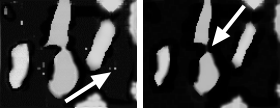
On the left you see the source image, on the right, the resulting image when the Erosion filter has been applied. The illustration demonstrates the way the erosion works for a 3x3 neighborhood. The point-shaped noise has disappeared. The objects in the middle of the image have been separated, the areas of the objects are, however, considerably smaller.
Comparison with other filters
The Erosion is a significant element of the Open and Close morphological filters.
1748 03122014