Use the Image > Calibrate Image > XY-Calibration tab to calibrate an image's X/Y-resolution after the acquisition. By doing so you determine the absolute size of a pixel. The correct X/Y-calibration is extremely important for many functions. For instance, only when the image calibration is correct, does the scale bar for an image show correct values.
Description of dialog box
Click on one of the areas in the dialog box shown schematically below, to jump to the corresponding help topic.
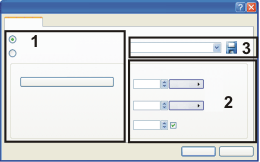
(1) X/Y-calibration on the basis of a known reference distance
(2) Having a look at the calibration data
(3) Saving and loading calibration data
See also
(1) X/Y-calibration on the basis of a known reference distance
Select the Interactive Calibration option when you want to calibrate an image on the basis of a linear distance you know. That can, for example, be a ruler or another scale that you have acquired together with an image.
Click the Set Reference Distance button to define the reference distance in the image. You will find step-by-step instructions for doing this further below.
(2) Having a look at the calibration data
X-Calibration / Y-Calibration
In the Calibration group you can see the current calibration data. This calibration data will be automatically updated when you select another microscope magnification or specify another linear distance on the image.
Note: The calibration data will be shown mainly for information. As a rule, you won't enter anything here.
If you have selected the Magnification option, the complete Calibration group will be shown in gray. Then you can't change anything there.
XY-ratio
In the X/Y ratio field, enter the value 1 when the camera pixels are square with the camera you are using. That is the case where most cameras are concerned.
When your camera has square pixels enter the length/width ratio of the camera pixels here. The X- and Y-calibration data will be calculated accordingly. Should you not know the exact length/width ratio of the camera's pixels, acquire an image that contains a scale in both X- and Y-direction. Select the Interactive calibration option and clear the fixed check box. You can then calibrate the image's X- and Y-directions separately. The length/width ratio will then have been calculated.
Fixed XY-ratio
This X/Y-ratio is, as a rule, a fixed value and doesn't change. For this reason, the fixed check box is by default selected.
Clear the fixed check box when, e.g., you don't know the X/Y-ratio for your camera and you want to calibrate an image in two calibration steps.
The Set reference distance group will be increased by the options X axis and Y axis. You can then use different calibration lengths for the X- and Y-directions.
(3) Saving and loading calibration data
Click the Save Calibration  button to save the current calibration data. With the help of this data you can very quickly calibrate further images at a later point.
You can find more information on this dialog box here.
1708 04032013