|
|
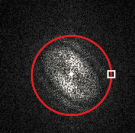
You can display a circle on an FT image using the Circle command. Use the circle to help you to check the astigmatism correction. Note: The Circle button is only active as long as the FT image is linked with the source image. See also Tool Window - Fourier Transform
Adding a circle to an FT image 1.Create a FT image. You can find more information on this topic here. 2.Click the Circle button. 3.A red circle appears in the FT image. 3.On the Toolbox toolbar, click the Selection Tool button in order to be able to select the circle. 4.A handle will be shown on the circle. 4.While pressing the left mouse button, drag the handle until the circle covers the area you want. 5.Check the intensity distribution in the FT image.
The intensity distribution in this FT image shows ellipses instead of rings. The astigmatism correction on the microscope needs to be checked. 6.If necessary, correct any astigmatism that may occur on the image. You can find more information on this topic here. 7.Click the Circle button again to make the circle disappear on the FT image. 4070 05022015 |