|
|
FT stands for Fourier transform. An FT image is the result of a mathematical operation, the Fourier transform of an image. It transforms the image from the spatial domain to the frequency domain. The FT image is a special image type with a bit depth of 32 bits. How do I recognize an FT image? See also Creating FT imagesPrerequisite: The source image for a Fourier transform must be a gray-value image. Your software offers you several ways of creating an FT image. 1.Acquire or load gray-value image. Now, use the Image > Calculate Fourier Transform > FT on Full Image or the FT on ROI command to compute an FT image from the active image. 2.Make the Fourier Transform tool window appear. Click the FT on Full Image or the FT on ROI button, located in the tool window's toolbar. 3.Load a gray-value image. Use the Image > Mode > 32 Bit Complex command. How do I recognize an FT image?1.You can immediately recognize an FT image because it has this icon 2.You can see what type an image is by looking at the Image > Type entry in the Properties tool window. For FT images, the 32 bit complex entry is displayed. 3.Alternatively, the Image > Mode command will also show you the image type. When it is an FT image the Grayscale and 32 Bit / Complex menu entries will be marked. The properties of an FT imageCalibrating an FT imageThe calibration unit for FT images is 1/ unit of length. This calibration is displayed when you display the scale bar in the image window. To do so, use the View > Scale Bar command, or the [Shift + F4] keyboard shortcut. If you perform an interactive measurement on an FT image, the results will also be displayed in 1/unit of length.
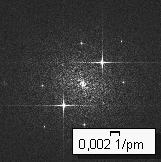
This is an FT image. The scale bar shows that the image is calibrated in unit 1/pm. A complex data formatAn FT image is composed of real and imaginary parts and therefore has a bigger data depth than the source image. Real and imaginary parts are both calculated with 16 bits and the FT image therefore requires a data depth of 32 bits. The image window displays the amplitude of the FT image. Even if you can't display the imaginary part of the FT image on its own, it's still a component of the image data. The real and imaginary parts of the image are required for an inverse transformation with the Image > Mode > 16 Bit / Channel command. Saving FT imagesNote: FT images can only be saved in the TIF or VSI file format. Otherwise they lose a great deal of their image information during saving. Converting FT imagesYou can convert an FT image back into a 16-bit true-color image, for example. To do so, use the Image > Mode > 16 Bit / Channel command. This conversion is an inverted Fourier transform. The resulting image looks like the image segment in the source image from which the Fourier transform was calculated. Alternatively, use the Inverse FT button in the Fourier transform tool window's toolbar to carry out an inverse Fourier transform. You can find more information on this topic here.
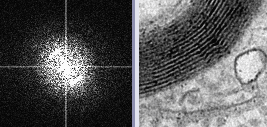
On the left you see the FT image and on the right the corresponding 16-bit gray value image. Both images contain the same image information. The only difference is that in the FT image you see the spatial frequency distribution and in the 16-bit gray-value image you see the sample in the spatial domain, as usual. 00281 |