This dialog box offers several settings that change the behavior of synchronized image windows.
Opening the dialog box
To open this dialog box, use the Tools > Options... command and select the Images > Synchronize entry in the tree structure.
See also
Description of dialog box
In the Type column, you will find a list of various ways in which synchronized image windows can behave.
Click in the Mode cell to obtain a list of possible modes. Select an entry to specify how the synchronized image windows are to behave when you use this variant.
In the Type column you will find the following activities:
XY panning
In the pan mode, you can move an image within the image window. To do this, keep the left mouse button pressed. Using the pan mode only makes sense if your image has been enlarged so much that it can no longer be completely displayed on your monitor.
Click the Pan Tool  button to switch to the pan mode. You will find this button on the Toolbox toolbar.
When you move an image into an image window that is synchronized with another image window, the images will move synchronously.
XY zooming
In the zoom mode, you can enlarge an image in small steps by clicking the left mouse button. A click on the right mouse button reduces the size of the image once again.
Click the Zoom Tool  button to switch to the zoom mode. You will find this button on the Toolbox toolbar.
When you change the zoom factor of an image that is synchronized with another image, you will change the zoom factor for all of the synchronized images simultaneously.
t navigation
There are several ways in which you can browse through a time stack. Use the Dimension Selector tool window, or the navigation bar for time stacks in the image window.
When two time stacks have been synchronized, you can browse through them simultaneously, and in this way optimally compare these time stacks with each other.
Z navigation
There are several ways in which you can browse through a Z-stack. Use the Dimension Selector tool window, or the navigation bar for Z-stacks in the image window.
When two Z-stacks have been synchronized, you can browse through them simultaneously, and in this way optimally compare these Z-stacks with each other.
Note: With your software version you cannot acquire a Z-stack. It is, however, possible to open Z-stacks that have been acquired with another program.
Description of the modes using the XY-panning variant as an example
Select the Not synchronized entry in the Mode list, to switch off the synchronization for this variant.
Select the Absolute entry, to be shown a comparable image segment in both of the image windows. The image segment in the second image will, in this case, be automatically altered to match the image segment in the first.
Select the Relative entry, to only move the image segments displayed in the two image windows, in relation to each other.
In the example shown below, two images are to be compared. Both of the images will be displayed in their image windows in such a manner, that in each case, only the image segment that is outlined in blue will be displayed in the image window. Assuming you then synchronize the two images, and shift the top image's image segment to the left.
Image (1) then shows how the second image segment behaves, when you have selected the Relative mode. Image (2) shows how the second image segment is changed in the Absolute mode.
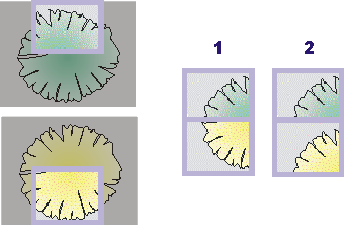
Please note that an image can no longer be moved when the border of the image is visible in the image window. If the image cannot be moved further, the relative position of the two image segments will change, even if the Relative mode has been chosen. For the example shown above, this means: If you move the lower image segment up, the upper image segment will stay where it is.
1733 08032013