Use this filter to calculate the skeleton of bright object's in the image. You'll find the Skeleton Bright filter in the Process > Morphological Filter menu.
Before using the filter
This filter can only be applied to binary images. Therefore, you have to first binarize the image by using the Image > Mode > Binary... command. Otherwise, in the menu for morphological filters, the Skeleton Bright command is grayed out. You can find more information on binarizing here.
See also
Overview - Morphological Filter
Working with morphological filters
Settings for the filter
The dialog box that is opened when you use an image processing operation is made up in the same way for every operation. Click here to switch to a description of this dialog box.
Application
What is a skeleton?
A skeleton is made up of points that are the same distance from different parts of the object's edges. The remaining lines should as nearly as possible, run through the middle of the source structure, and in doing so, not show too many branches caused by noise.

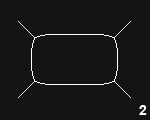
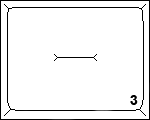
The schematic example demonstrates a comparison of how the two skeleton filters work. You'll find the source image (1) on the left-hand side. The Skeleton Bright (2) filter produces the skeleton of the object (a thick white frame), the Skeleton Dark filter (3) the skeleton of the background.
Exactly what happens?
An object's skeleton is determined by erosions that are carried out one after the other. The erosion process continues to removes pixels until the next erosion would destroy the objects coherence.
1760 04122014