Use this filter to separate objects that touch each other. You'll find the Separate Objects filter in the Process > Morphological Filter menu.
See also
Overview - Morphological Filter
Working with morphological filters
Settings for the filter
The dialog box that is opened when you use an image processing operation is made up in the same way for every operation. Click here to switch to a description of this dialog box.
In the Settings group of the dialog box for image processing operations, you can make the following settings:
Boundary shape
Here, you specify which criteria are used to detect the objects to be separated.
Select the Dark boundary shape, if you want to separate bright objects that have a dark background. Select the Bright boundary shape, if you want to separate dark objects that have a bright background. Select the Step boundary shape if the objects that you want to separate have different intensities and can be distinguished clearly from the background.
Fine / Coarse slide control
Use the Fine / Coarse slide control to set the number of separation lines that will be found. A higher value reduces the amount of lines found, because in this case minimal fluctuations in intensity are ignored for the detection of the separation lines.
Smoothness slide control
Use the Smoothness slide control to set whether a smoothing filter should be applied before the object separation. By using a smoothness filter, minimal fluctuations in intensity are ignored and image noise is reduced. You can find more information on smoothing filters here.
Note: This command is not available for binary images.
Connectivity
In the Connectivity group, you define which pixels are to belong to an object.
Select the 4 Neighbors option when two pixels are only to belong to an object when they touch each other with one of their four sides. As a rule, using this option means finding fewer image objects than using the 8 Neighbors option.
Select the 8 Neighbors option when two pixels are only to belong to an object when they touch each other via one of their four edges, or one of their diagonals.


The image object shown in gray, is made up of three pixels. Depending on the setting you make in the Connectivity group, your software will count two different image objects (4 Neighbors, illustration on the left) or only a single image object (8 Neighbors, illustration on the right).
Results
Select the Burn black option, if the found separation lines are to be burnt into the image in black. Alternatively, select the Burn white option, if the found separation lines are to be burnt into the image in white.
Note: When you "burn in" information, you write this additional information irrevocably into the image. This additional information will then become an integral part of the image. Therefore, save the image under a different name if you want to keep the original image. Additional information on burning information into an image can be found here.
Application
Morphological Close filter as preparation for the object separation
There are often image defects or small holes in the objects that lead to mistakes when the object separation is made. For this reason, use the Process > Morphological > Close... command before you separate the objects.

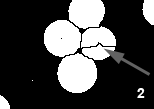

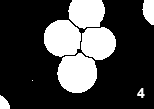
The illustration demonstrates the way the object separation works, before and after the Close filter has been applied.
In the source image (1) the objects are connected. In some of them there are small holes. The arrow points to a typical mistake that occurred during the separation (2). With the Close filter, the holes are closed (3). Subsequently, the Separate Objects filter finds the correct separation lines (4).
1762 04122014