Use the Define Macro Batch dialog box to define a batch process for a macro. In the first step you define which images you want to process in the batch process.
Description of dialog box
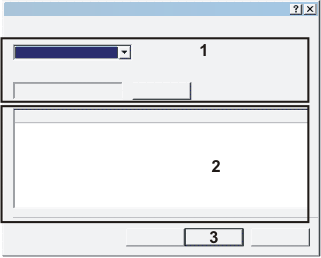
(1) Defining the input data
Depending on the input you selected, the appearance of the dialog box will change. This batch process allows you to process images that are currently loaded in your software.
(2) Checking selected documents
See also
Define Macro Batch - Output (Step 2)
(1) Defining the input data - Selected documents
In the Input field, select the Selected Documents entry to process several images that are currently loaded in your software. Select the images you want in the Documents or in the Gallery tool window before you open the Define Macro Batch dialog box.
(1) Defining the input data - Documents in file system
In the Input field, select the Documents in file system entry, to process image files that have been saved on either a data storage medium, or in the network.
Click the Browse... button to choose the image files. The standard dialog box for loading files opens. Browse to the directory containing the images, then choose the image files you want there.
(1) Defining the input data - Documents in directory
In the Input field, select the Documents in directory entry to process all of the image files that have been saved in a particular directory.
The directory that is currently being used as input for the batch process is displayed.
Click the Browse... button to choose another directory.
Select the Include subfolder check box to also use the image files contained in a subfolder of the chosen directory for the batch process.
Clear the check box. Then possible subfolders won't be taken into account in the batch process.
(2) Checking selected documents
In the Documents list, all of the images that are to be processed by the batch process are listed. Here, make sure that the images you want are going to be processed.
If you want to change the input data, close the Define Macro Batch dialog box by clicking the Cancel button.
The Iterations field, located below the document list, shows how often the macro runs in the batch process defined. Since the macro runs once for each image, this corresponds with the number of images that have currently been chosen.
(3) Defining the output
Click the Next > button to define the output for the batch process.
A description of this dialog box can be found here.
00410 15042013