You can find the Fourier Display Enhancement group in the Adjust Display tool window. If the group's functionality is hidden, click once on the small arrow button next to the Fourier Display Enhancement field.
Prerequisite: The group is only active when an FT image is loaded in the image window.
Use the slide controls in this group to change the display of the current Fourier image on the monitor. You will see all changes immediately on the image.
Note: You do not change the actual image data when you adjust the display. The image will only be displayed differently on your monitor. The settings for the display will be saved along with the image, provided you save the image in the TIF or VSI format.
See also
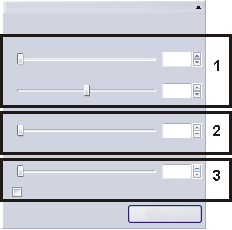
(1) Background subtraction
Use the Amplitude and Width slide controls to change the FT image's intensity distribution using background subtraction. This subtracts a Gaussian shaped intensity distribution from the FT image. You can use it to reduce the image noise and to optimize the display of relevant objects by increasing the intensity.
(2) Radial enhancement
Use the Radial enhancement slide control to optimize the display of higher frequencies on an FT image.
Move the Radial enhancement slide control to the right to increase the intensity in the outer area of the FT image.
(3) Logarithmic scale
FT images often contain both low and high intensity values that aren't visible on the images.
Use the Logarithmic scale slide control to optimize the display of very low or very high intensity values in the FT image.
Select the Rainbow color table check box to emphasize the intensity differences in the FT image using different colors. The value in the Logarithmic scale field changes to 50. You can optimize the display according to your needs with the Amplitude, Width, Radial enhancement and Logarithmic scale slide controls.
00830 14032014