The Image > Mode > Binary... command converts the active image into a binary image. A binary image only contains two colors, black and white.
Prerequisite: This command is only available when the Detection software solution has been purchased.
Setting threshold values
In order to be able to convert an image into a binary image, you first have to define which image segments you want to be white and which image segments you want to be black. To do this, define a phase that is limited by an upper and a lower intensity value on the image. These are the so-called threshold values. All of the image structures whose intensity values are within this range are white in the resulting image. You can also define several phases.
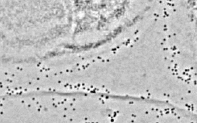
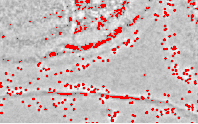

Image 1: You can see small dark objects in the original image. These are gold labels.
Image 2: The thresholds have been set to include the gold labels within the same phase. The phase is shown in red in the image.
Image 3: The binary image shows only the gold labels. The gold labels are in the foreground of the image and are white in color. The background is black.
Why convert a binary image?
Some morphological filters, the Skeleton Bright filter for example, only work on binary images. Morphological filters are used in preparation for an automatic object analysis.
Depending on the image type, you will obtain slightly different dialog boxes for the threshold value setting.
Manual threshold values for gray-value images
Manual threshold value for RGB images
See also
Overview - Morphological Filter
5269 21112014