Use the Image > Geometry > Rotate... command to rotate the active image.
The dialog box that is opened when you use a geometry function is made up in the same way for every operation. Click here to switch to a description of this dialog box.
Note: Drawing objects or annotations in the source image will not be rotated.
Characteristics of the resulting image
•The image calibration will also be retained.
•When you rotate it through 90°, 180°, 270° and 360° an image's length/width ratio will not be changed. When you rotate it through any other number of degrees, this ratio will change. The result is that then there are image segments for which no image information is available. These sections will be filled out in white.
See also
Settings for the geometry function
Setting the rotation angle
Enter the desired rotation angle in the Angle field or use the slide control to set it. The image will be rotated clockwise around its middle point.
The arrow button to the right of the field will change the rotation angle in 1° steps.
Interpolation
When you rotate an image, as a rule, several pixels from the source image have to be combined into one single pixel. Your software has to decide which gray/color value this pixel is to have.
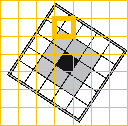
Select the None option in the Interpolation list, if you don't want the image to be interpolated when you rotate it. The pixel in the resulting image will then keep the gray/color value of the appropriate pixel in the source image. In the example shown, the boldly framed pixel remains white. The small corner that the gray pixel contributes will be ignored.
Use the Bilinear option to average out the gray/color values of adjoining pixels in the source image. When you employ bilinear interpolation, the gray values, or the color value transition in the resulting image will appear more continuous. However, employing this process can create the impression that the image is too soft, or is washed-out.
Use the Bicubic option to average out the gray/color values of adjoining pixels in the source image. In this process, considerably more pixels will be taken into consideration than in the bilinear interpolation. Bicubic interpolation produces a resulting image that looks sharper and better than when bilinear interpolation is used. However, the calculation takes longer, and where there are sharp contrast transitions overshooting can occur.
1717 27022013